How to Change Crosshair in GTA 6
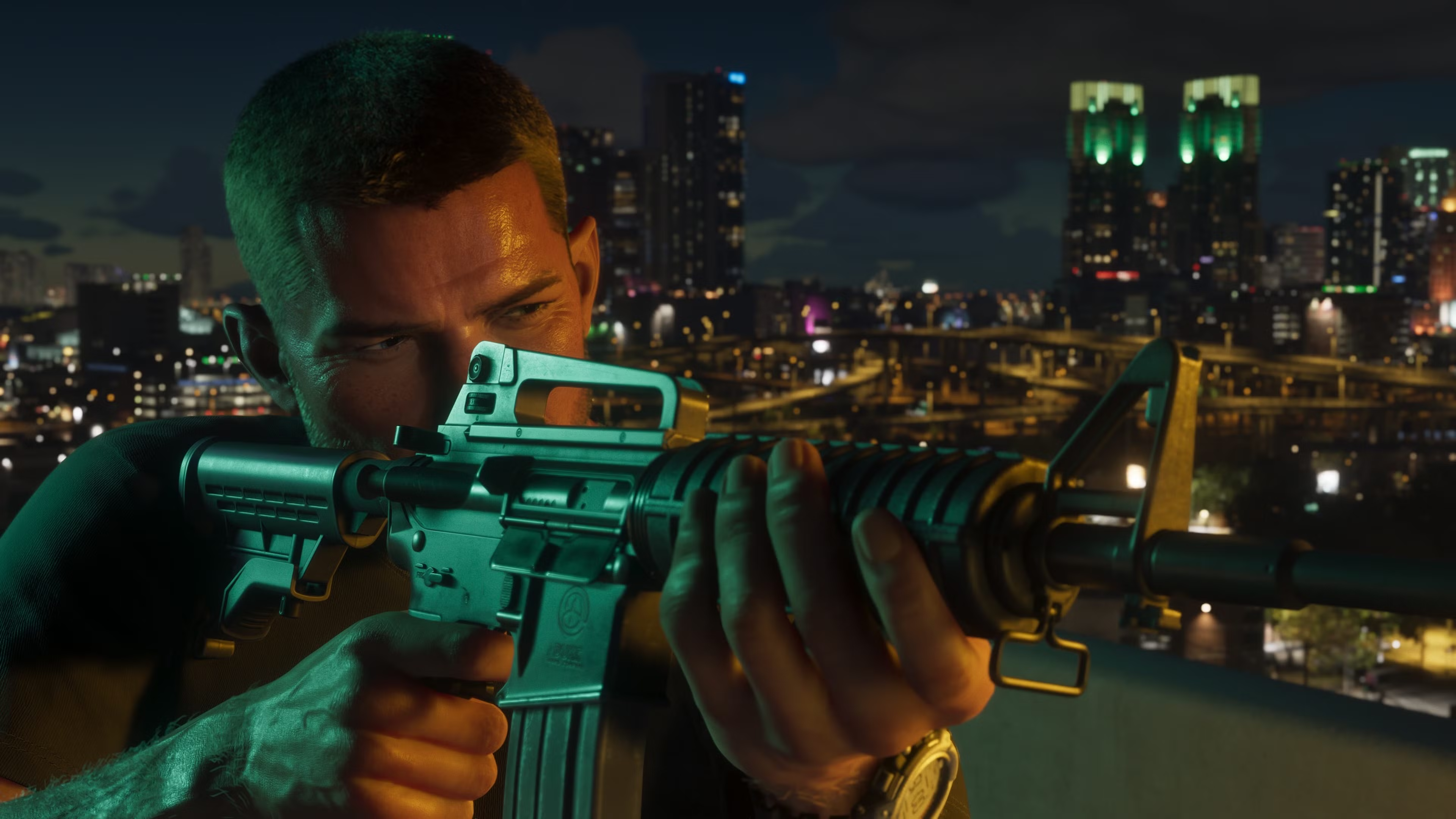
One of the first changes that you notice in GTA 6 as soon as the action unfolds is a change in the reticle's shape. In previous GTA games and even in Red Dead Redemption 2 , players got accustomed to that small dot on the screen as the reticle, but now a new shape with three dashes has replaced it.
The good news is that you can change the shape through the settings, and the old single dot is still an option. Besides, you have a few other options, allowing you to further adjust the reticle and enjoy using your weapons.
You can use first-person cameras in GTA 6 for shooting. Here's how to enable it.
How to Change the Reticle in GTA 6
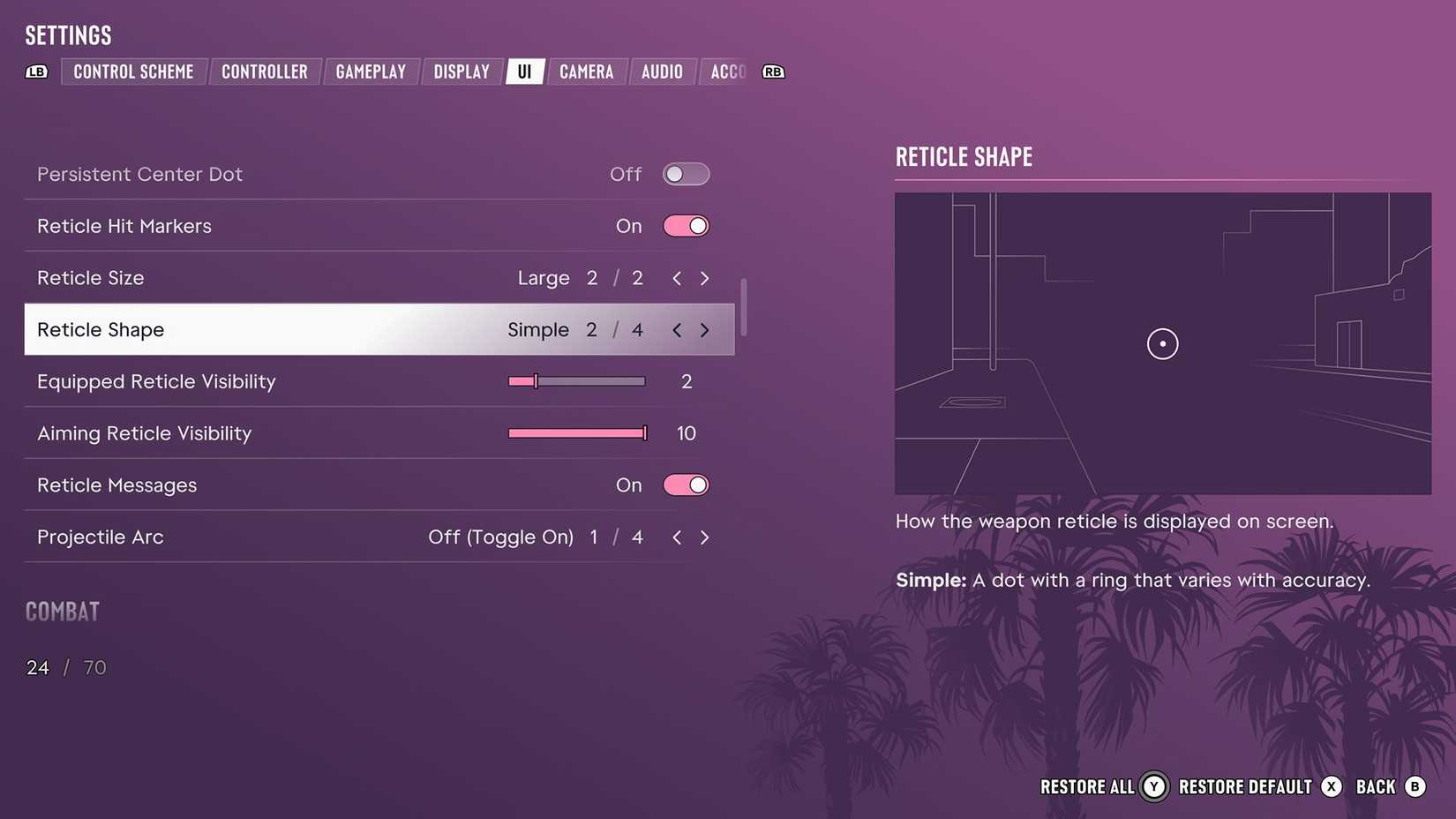
Image: GameRant via Rockstar Games Pause the game and head to the Settings menu. Now, navigate to the UI tab and scroll all the way down until you find the Reticle section. Here, you have multiple options to customize the reticle, but the one you are looking for is the Reticle Shape, and it comes with four options:
Complex: This is the game's default reticle with three dashes.
Simple: This one comes with a single dot in the middle and a circle around it. This is a good option for both accurate weapons and shotguns.
Dot: This is the old-school reticle for the GTA series. You get a single dot on the screen, and that's it.
None: This is an option for hardcore players or those who prefer a realistic approach to gunplay. You get no indicator on the screen to guide your aim.
Aside from the shape, you also get to customize the size of the reticle with two different options.
Moreover, you can enable or disable Hit Markers. This represents the four X-like dashes when your bullet hits the target. For a hardcore play style, you can turn this off.
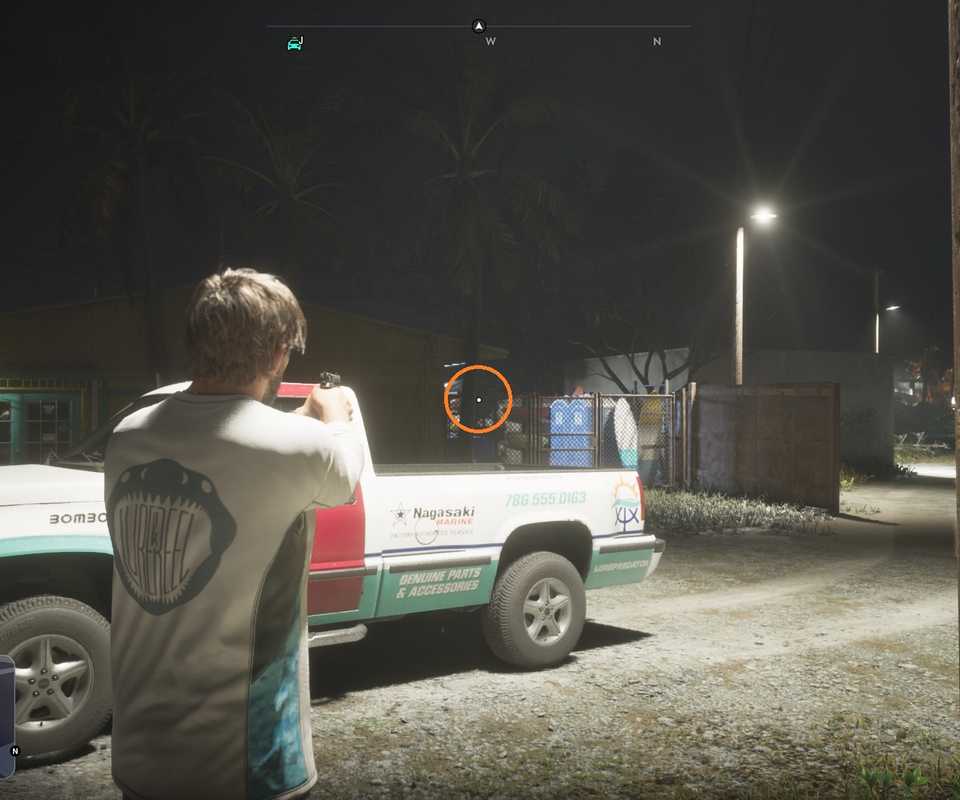
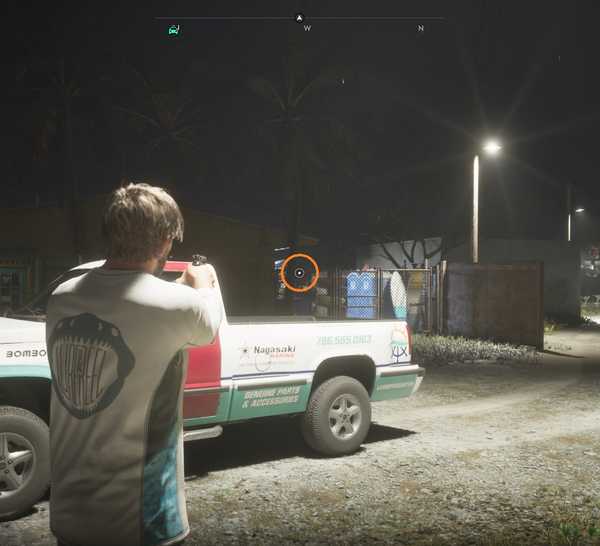
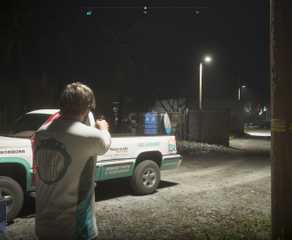
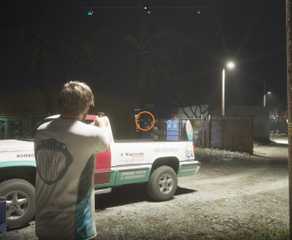
Close Image: GameRant via Rockstar Games Image: GameRant via Rockstar Games Image: GameRant via Rockstar Games Image: GameRant via Rockstar Games A Persistent Center Dot is also available as an option. With this one enabled, you will always have a center dot on the screen, whether you have a weapon equipped or not.
The game also allows you to change the transparency of the reticle in two different situations: when aiming down sights, and when having your weapon equipped but not aiming yet.
Lastly, the game also allows you to customize the projectile arc for throwable objects or explosives. You can completely turn off the arc to make the gameplay look more realistic, or you can set it to toggle mode, where you enable or disable the arc display by pressing R3 or R in-game.
This guide only covers confirmed information. Unconfirmed community findings are labelled as speculation where they appear.