How to Fix GTA 6 Slow Download Speed

Affiliate Disclosure : This article contains affiliate links. We may earn a commission if you make a purchase or sign up for a service through these links, at no additional cost to you.
Players are likely to encounter slow download speeds when preloading GTA 6 or downloading the full 212 GB on launch day, as millions of PS5 and Xbox Series X|S players are hitting the servers at once. Heavy traffic on PlayStation Network and Xbox Live, game code redemptions, and built-in console bandwidth limiters can easily slow your download speeds to a crawl.
If your GTA 6 installation or update is taking hours longer than your internet connection should allow, check out the fixes below to clear local network bottlenecks and force a faster server connection.
Want to play GTA 6 early? Learn how to use the New Zealand trick on Xbox Series X|S and PS5 to unlock Grand Theft Auto 6 up to 18 hours ahead of time.
Fully Close Any Running Games in the Background
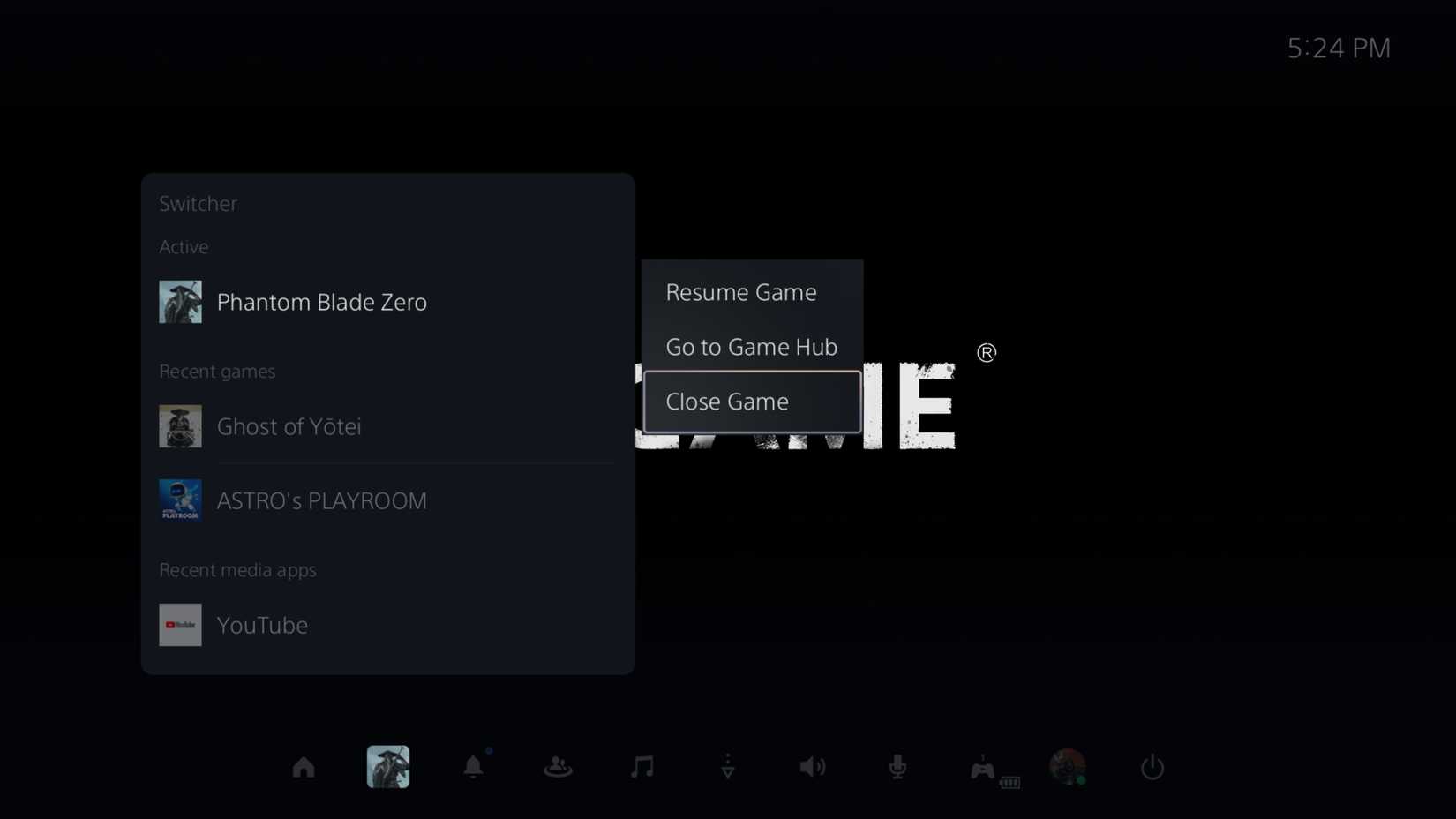
Both PS5 and Xbox Series X|S can automatically throttle your download speeds whenever a game or application is open in the background. This mainly happens to reserve system resources and network bandwidth for active sessions, which can essentially suspend or cut down your download rate by more than half .
Close Background Games or Apps on PS5
Press the PS Button on the controller.
Open the Control Center and highlight the active game or application.
Press the Option or "X" button, then select Close Game or Close App.
Close Background Games or Apps on Xbox
Press the Xbox Button on the controller.
Go to My Games & Apps > See All.
Navigate to Manage, and then Queue.
Select Suspend My Game at the top of the screen.
Pause & Resume Downloads to Switch Download Servers
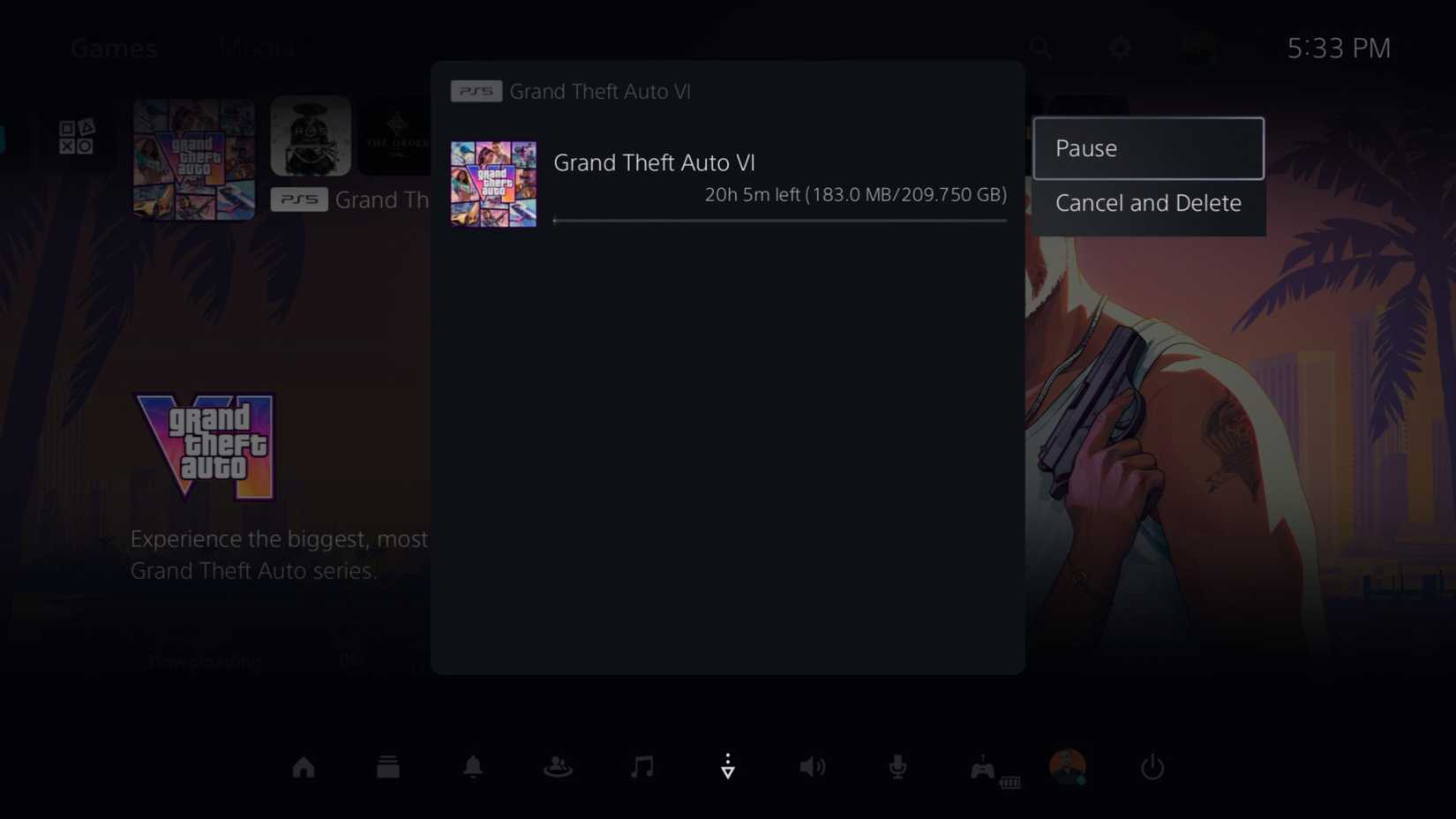
When millions of consoles download 212 GB of files for GTA 6 or a launch-day patch simultaneously, the Content Delivery Network (CDN) nodes on PSN and Xbox Live inevitably become congested . If your console locks onto an overloaded server, your download speeds can plummet to a few megabits per second, even on a gigabit fiber connection.
Pausing the download and waiting 30 to 60 seconds before resuming forces your console to drop its current session and establish a fresh handshake, which often routes your transfer to a less crowded server node. In my experience pre-downloading GTA 6 , this has helped increase overall download speed.
Force 5 GHz Wi-Fi or Connect an Ethernet Cable
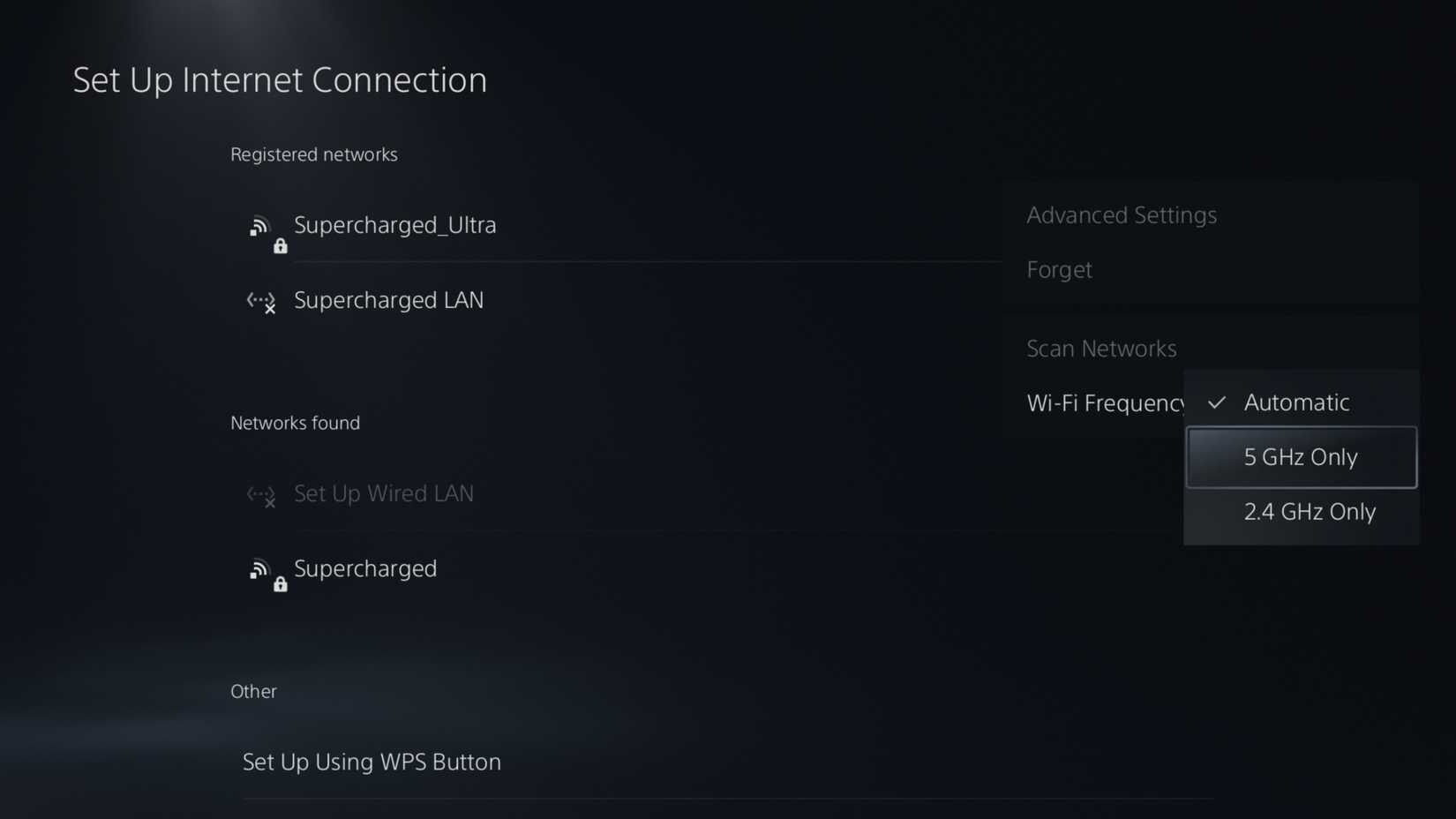
If you've connected your PlayStation 5 or Xbox Series X|S via Wi-Fi, make sure you're using the 5 GHz frequency band or simply connect through an Ethernet cable.
PS5 : Go to Network Settings, highlight your active Wi-Fi connection, and select 5 GHz Only.
Xbox Series X|S : Connect to your router's dedicated 5 GHz Wi-Fi band, as there's no way to force Xbox to use 5 GHz on a combined (2.4 GHz + 5 GHz) Wi-Fi network.
If your internet is capable but your router doesn't support 5 GHz or higher bands, you'll need to buy a new router or use a wired connection.
Alternatively, plugging your PS5 or Xbox Series X|S directly into your router with a Cat6 Ethernet cable removes wireless interference and stabilizes peak throughput. So, if you want fast, hassle-free internet connectivity, go wired.
Switch Your Console DNS Settings
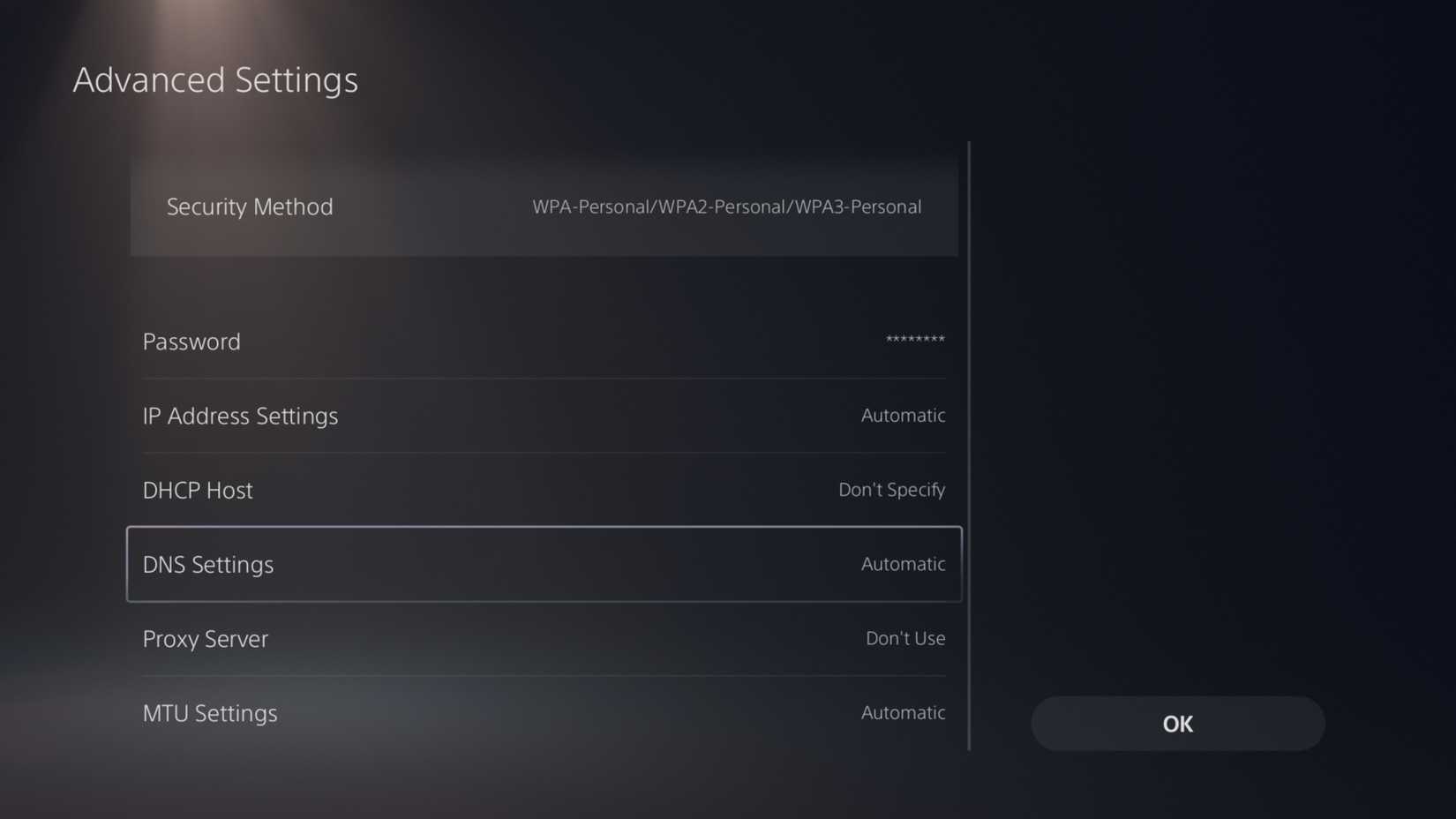
Your Internet Service Provider's default DNS server can sometimes struggle to route your console to the fastest nearby PlayStation or Microsoft download node , especially during launch-week traffic spikes. Switching to a public DNS like Cloudflare or Google can improve how your console resolves CDN server routes.
How to Change DNS on PlayStation 5
Navigate to Settings > Network > Settings > Set Up Internet Connection.
Highlight your active network connection, press Options, and select Advanced Settings.
Set DNS Settings to Manual, and use either Google's or Cloudflare's DNS I've mentioned above.
How to Change DNS on Xbox Series X|S
Navigate to Settings > General > Network Settings > Advanced Settings.
Select DNS settings and choose Manual.
Enter one of the DNS addresses above, then restart your console.
Prevent Standby Downloads From Stalling in Rest or Sleep Mode
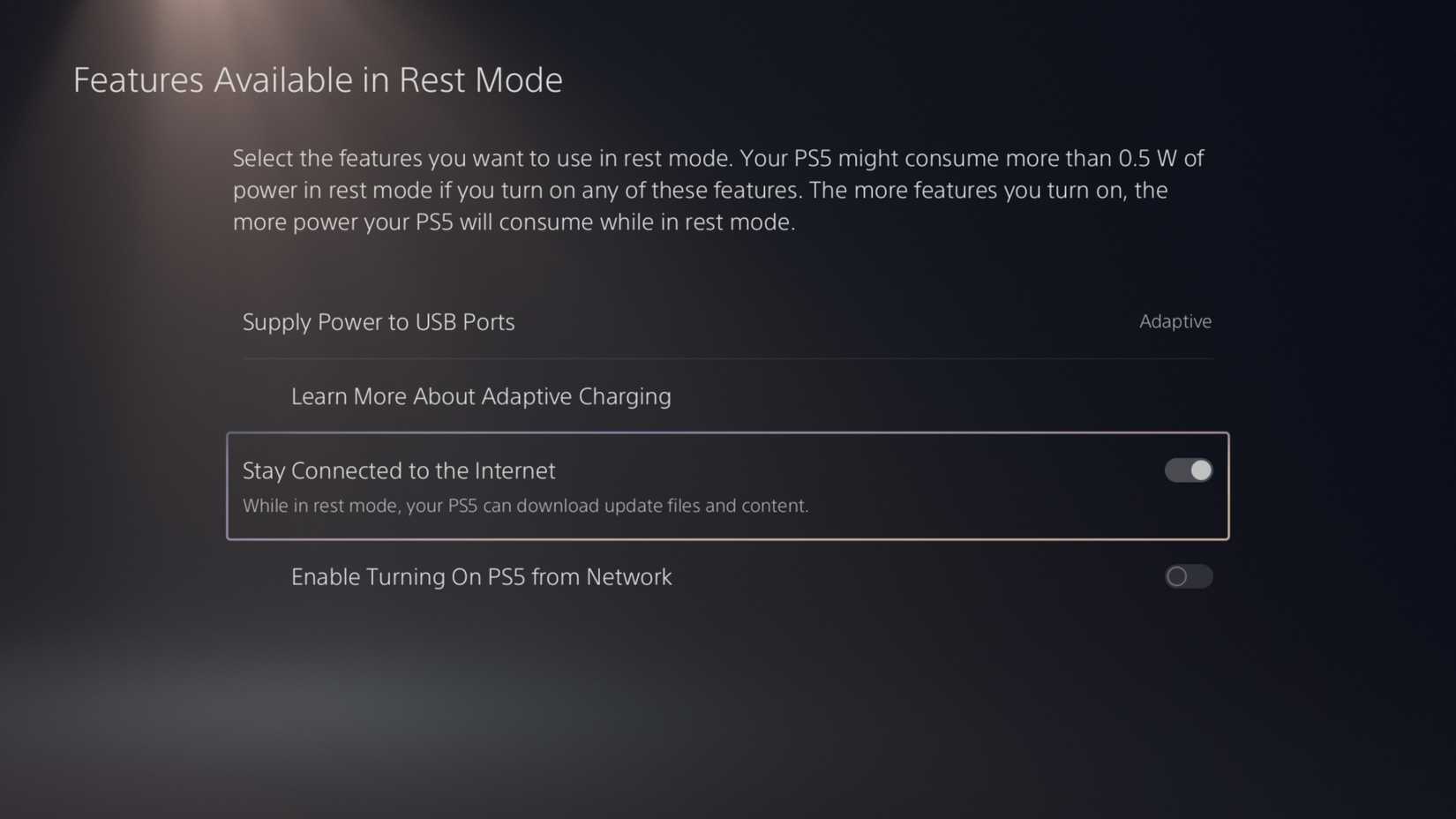
If you leave GTA 6 downloading overnight or while away from your console, you might return to find the progress bar frozen and the download stalled. The main culprit is your Rest or Sleep Mode settings, which can cut off background transfers. Here's how to fix this issue.
How to Change Rest Mode Settings on PlayStation 5
Navigate to Settings > System > Power Saving.
Go to the Features Available During Rest Mode menu.
Toggle the "Stay Connected to the Internet" option on.
How to Change Sleep Mode Settings on Xbox Series X|S
Navigate to Settings > General > Power Options.
Switch the option from Shutdown (energy saving) to Sleep mode.
This guide only covers confirmed information. Unconfirmed community findings are labelled as speculation where they appear.