How to Get 60 FPS in GTA 6

Grand Theft Auto 6 only runs at 30 fps , but thanks to modern software like Veyra, 60 fps is well within your reach! While you will require a few things to set this up, specifically a PS5, a PC with an Nvidia RTX card, and a capture card, setting up Verya has never been as simple as this. We'll walk you through the process of using Frame Generation to get 60 fps working like a charm.
How to Install Veyra (& How it Works)
Veyra is a third-party software that turns your capture card into a real-time GPU enhancement pipeline, effectively allowing you to stream your PS5 to your PC with little input delay, along with pro enhancements like Frame Gen and DLSS5:
To begin, head to the Veyra GitHub page and download the latest release, which is dependent on if you have an Nvidia or AMD graphics card.
Once downloaded, extract the file and run veyra_qml_ui.
You will now be able to select between PS5 Streaming or a Capture Card, and there are two important distinctions to make: PS5 Streaming uses Remote Play, so there will be quite a bit of input delay.
Capture Card uses your capture card, which has far less input delay.
How to Use Veyra for PS5 Remote Play
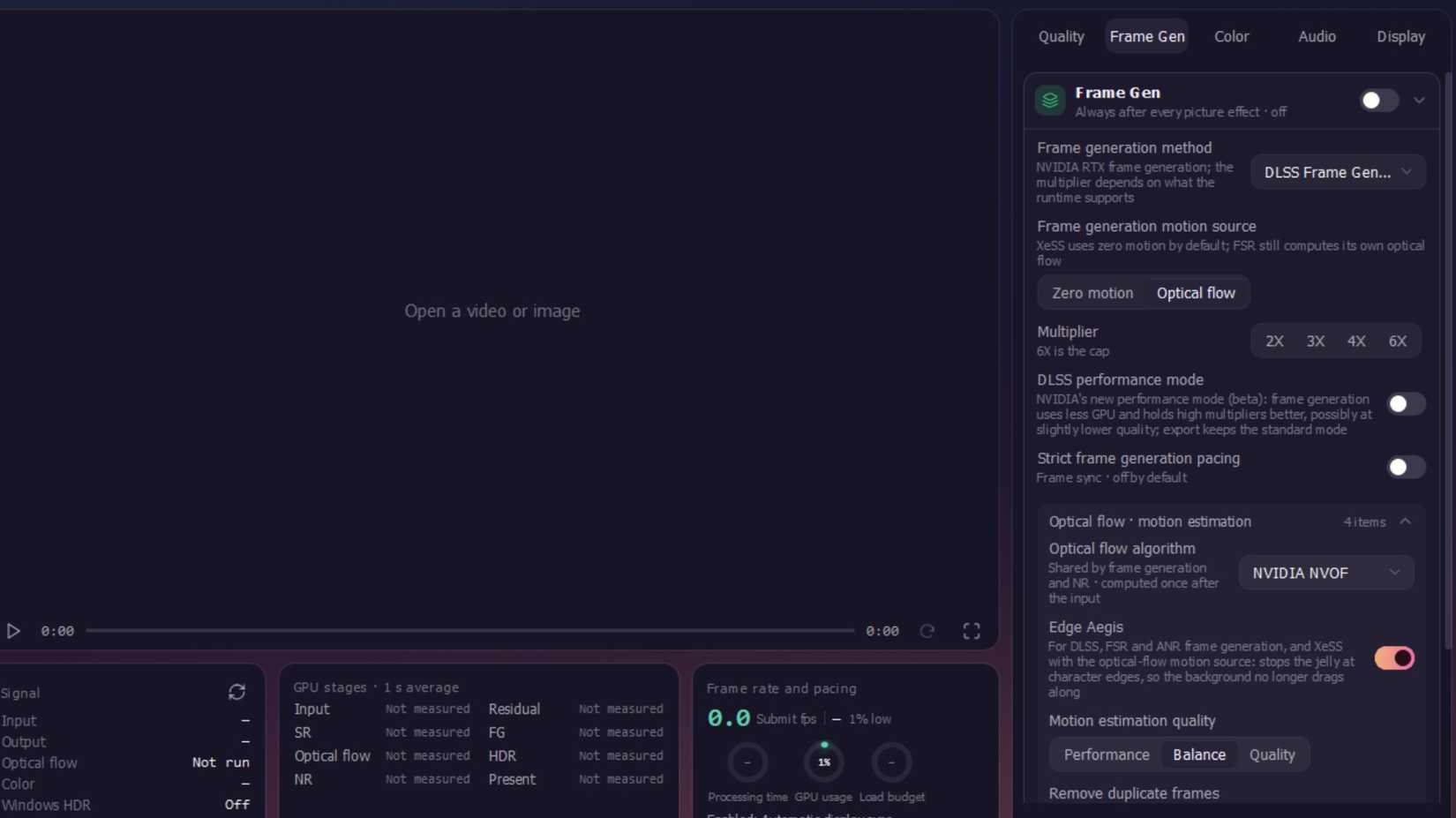
On your PS5, enter System Settings and Enable Remote Play. Check your Console Information and enter the console's IP at the Saved Host Address in Veyra, then click Search. Use the PSN_Checker to get your PSN Account ID, then enter the information into Veyra under PSN Account ID. Input the Remote Play code into the 8-digit pairing code on Veyra, then select Pair and save. You can now click Connect, which will stream your PS5 directly to your PC. From here, use the mouse to select the top of Veyra to find the Pro Mode tab. Under the Frame Gen tab, change the Multiplier to 2X for 60 fps. Again, Remote Play is going to have some input delay, so you're better off using the capture card method or just stick with the default 30 fps on your console.
How to Use Veyra for PS5 Capture Card
Connect your PS5's HDMI cable and port to your capture card.
Use a USB cable to connect the capture card to the PC.
Select Capture Card on Veyra and select your capture card under Video Input Device.
Click Connect and Start, then use the Pro Mode tab to change your FPS Multiplier in the Frame Gen tab.
This guide only covers confirmed information. Unconfirmed community findings are labelled as speculation where they appear.