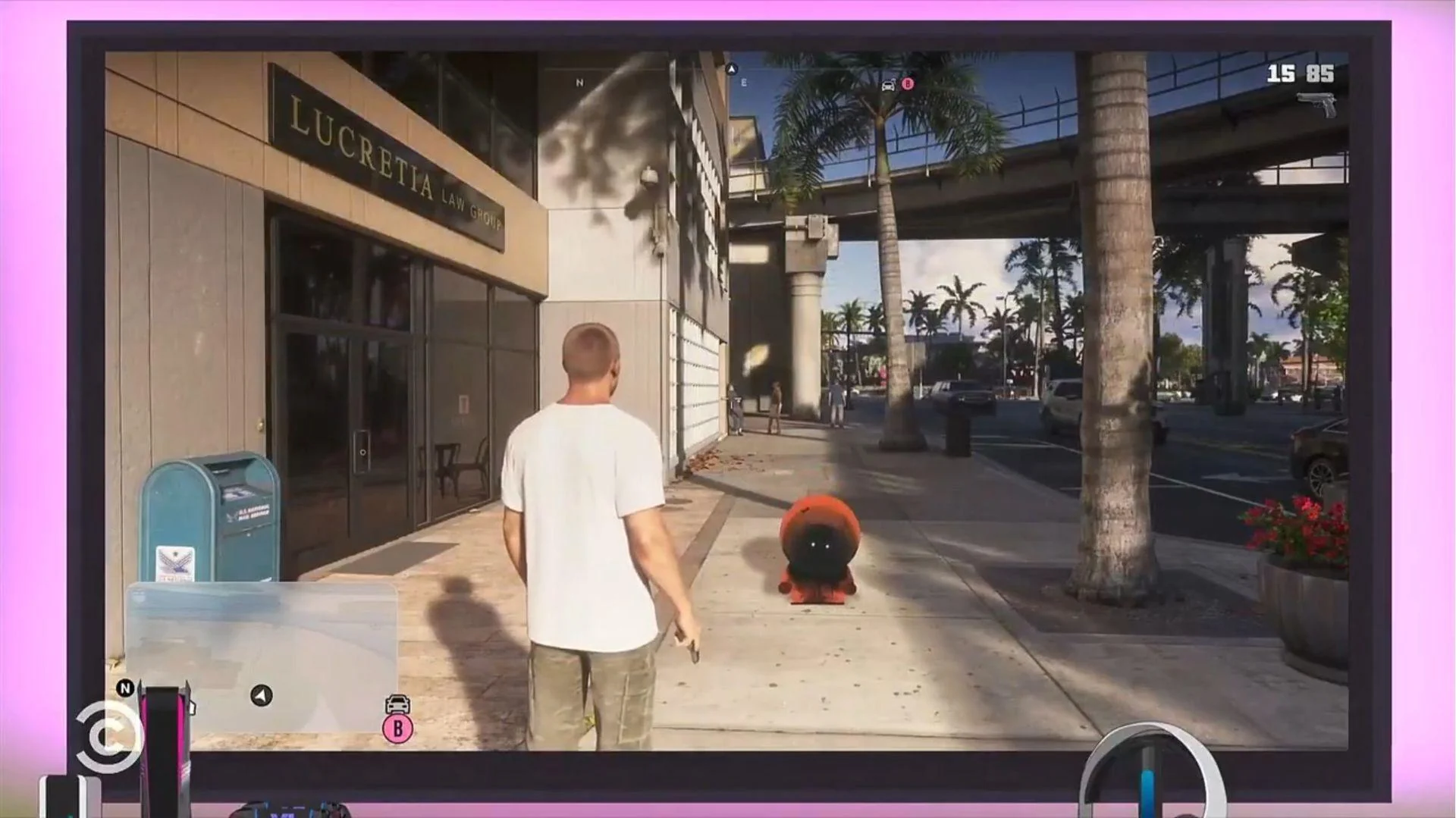
All GTA 6 Controller Settings on PlayStation & XBOX—Full Control Scheme
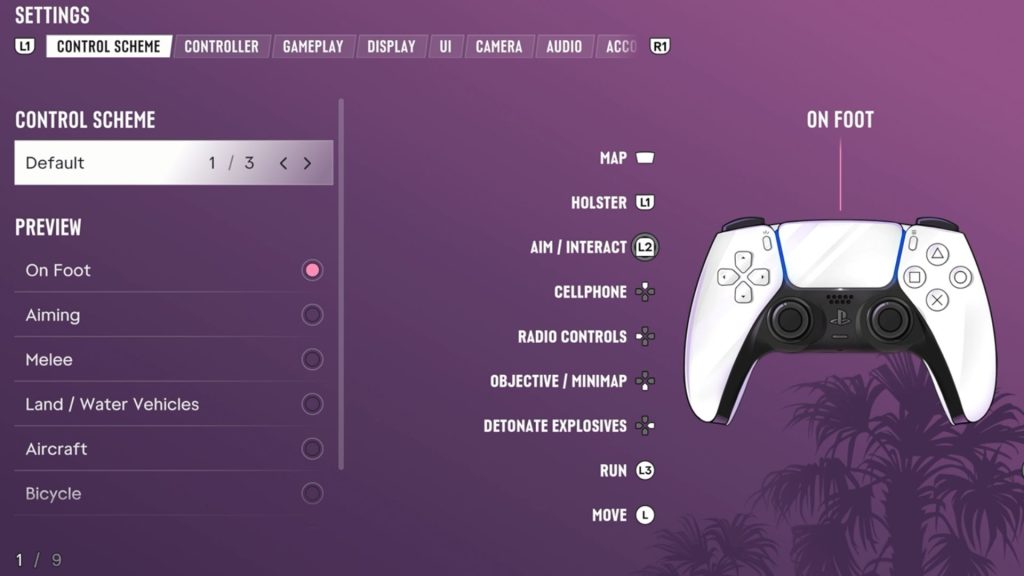
GTA 6 gives you freedom in how to set up your controls, and with so many ways to play, there are a million controls to consider. For a quick check of a couple of controls, this walkthrough has all of the game’s controller schemes on PlayStation and XBOX.
This might be a guide you end up coming back to for years. With on-foot controls, flying settings, and a myriad of other vehicles and inputs to remember, it’s always handy to have a complete rundown of GTA 6‘s controller settings.
You can buy Grand Theft Auto 6 here if you haven’t already!
All GTA 6 PS5 Controls
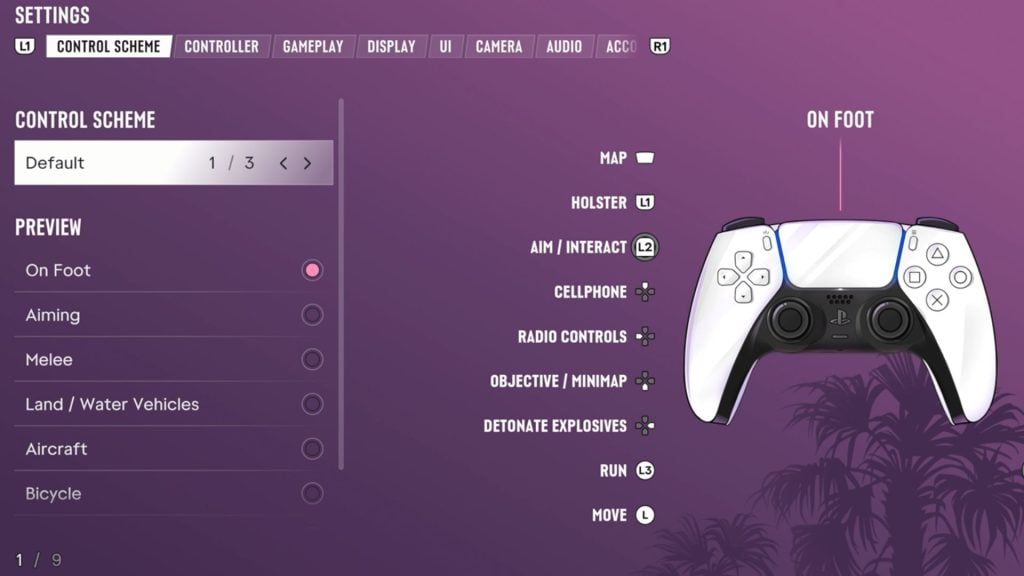
Default Control Scheme
D-Pad Up: Cellphone & Waink App (Hold)
D-Pad Left: Radio Controls & Radio Menu (Hold)
D-Pad Right: Detonate Explosives & Partner Menu (Hold)
D-Pad Down: Objective / Minimap & Quick Navigation (Hold)
R1: Cover & Quick Throw (Hold)
D-Pad Right: Detonate Explosives
D-Pad Up: Cellphone & Interact (Hold)
D-Pad Left: Indicate Left & Vehicle Menu (Hold)
D-Pad Right: Indicate Right & Partner Menu (Hold)
Circle: Headlights & Duck (Hold)
Right Stick: Look & Look Behind (Hold)
D-Pad Left: Radio Controls & Vehicle Menu (Hold)
D-Pad Right: Partner Menu & Partner Menu (Hold)
D-Pad Right: Partner Menu (Hold)
D-Pad Down: Objective / Minimap & Navigation (Hold)
D-Pad Left: Radio Controls & Radio Menu Hold)
Right Stick: Look Behind (Hold)
Classic Control Scheme
Square: Headlights & Duck (Hold)
Left-Handed Control Scheme
L1: Cover & Quick Throw (Hold)
Left Stick: Look & Look Behind (Hold)
All GTA 6 XBOX Series X|S Controls
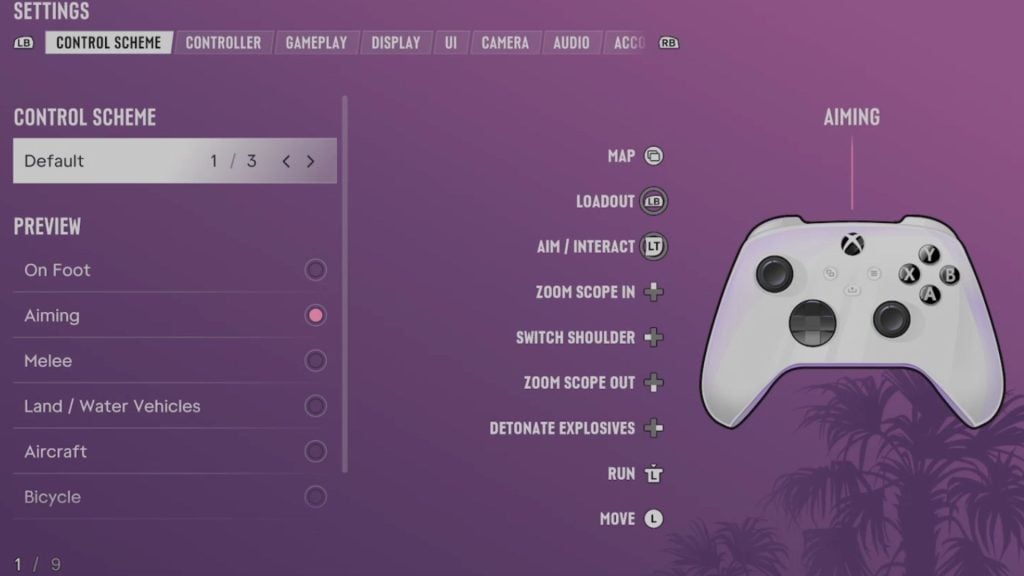
RB: Cover & Quick Throw (Hold)
LB: Cover & Quick Throw (Hold)
We should eventually have PC controls as well. Let us know your thoughts about the game via the free Insider Gaming Discord server.